Staff guide
New booking
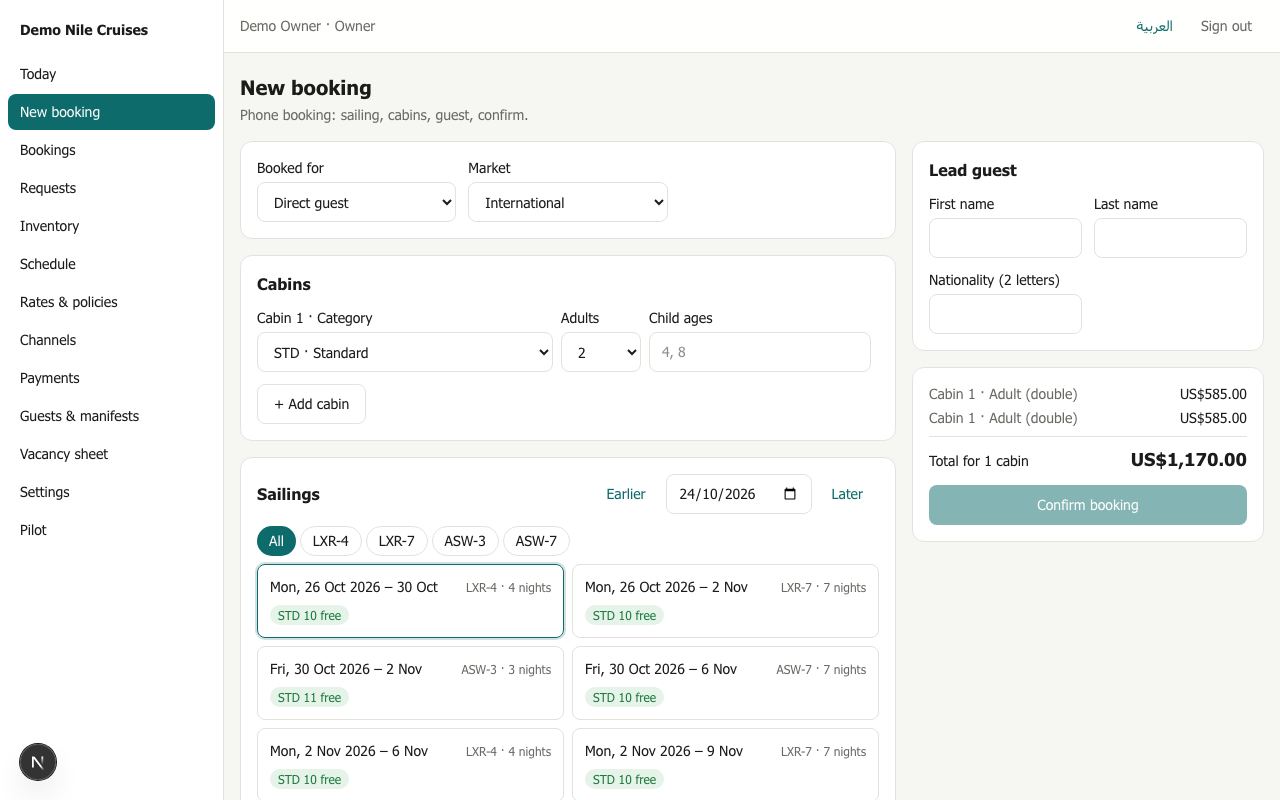
The booking screen is built for the phone call: you can confirm a booking in about a minute, on a desk or on a mobile phone.
Step by step
- Booked for: Direct guest for a guest who calls or walks in, or an agency's name if you book for one. The agency's contract decides the price, how payment works and whether the booking is confirmed at once or sent as a request.
- Market: International, or Egyptian resident for resident prices (the voucher reminds the guest to bring ID).
- Cabins: the category, the number of adults, and the ages of children on the embark date (for example
4, 8). Add a cabin for each extra room. - Sailings: pick the itinerary (for example LXR-4), then tap a sailing. Each sailing shows how many cabins of your categories are free. Sailings that cannot take your cabins are greyed out. Use Earlier / Later to move through the dates.
- Lead guest: first and last name; nationality if you know it.
- Check the price lines and total, then press Confirm booking.
You land on the new booking. Its reference (for example VS-26-00610) is what the guest quotes from then on.
What happens next
| Booked for | Result |
|---|---|
| Direct guest | The booking is waiting for payment. Its cabins are held for 24 hours (a company setting). Record the deposit on the booking and it becomes confirmed. If nothing is paid in time, the cabins are released |
| An agency that collects payment or has credit | Confirmed at once |
| An agency on request | Sent as a request: the button reads Send request, and the office answers it on Requests |
Good to know
- Pressing Confirm twice never makes two bookings.
- If two people book the last cabin at the same moment, one succeeds and the other sees Not enough cabins left.
- Children's prices follow the child policy: for example under 2 free, 2–5 at 25% and 6–11 at 50% when sharing with two adults. See Pricing.